Om Academy
Hittade du svaret på din fråga? Under dokumentation finns informativa beskrivningar som hjälper dig förstå och kunna använda Essentials funktionalitet fullt ut. Genom insiktsarbete höjer du kunskapsnivån i hela organisationen.
Preview Quest is the fastest way to review your respondent experience while you build your Quest. It lets you open the Quest in a preview window, and run it without storing any answers.
You can choose whether your Quest should be previewed with Rules On or Off from the drop-down in the left side-menu:
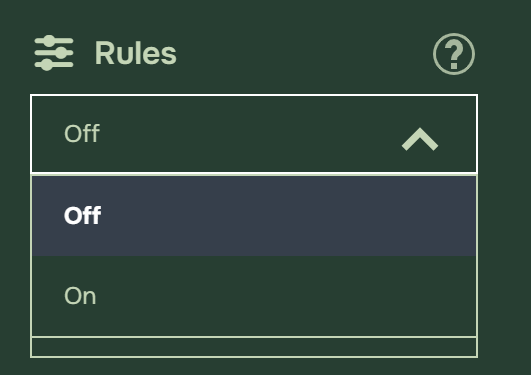
When Rules are turned On, The Quest Preview will reset and take you to the first page of the quest, and you won’t be able to change the language or use Go To from the Preview menu on the left.
Quest Preview lets you thoroughly test your quest’s behavior before publication when Rules are On. It reflects most of what respondents will experience, including display logic and mandatory questions.
Having Rules turned on is especially useful after you have added or changed Rules, because you can immediately see whether the Quest-journey still makes sense and whether any questions unexpectedly disappear or repeat. Keep in mind that Preview Quest is still a preview, so answers are not stored. It is meant for checking the Quest-experience and logic, not for creating data in reporting.
Please note: Quota settings and Notifications are not applied when Rules are turned On.
When Rules are Off no logic or rules will apply to the Preview and is best suited for a quick and predictable review of your Quest content and layout.
Preview Quest can also help you review different device views and check different language versions if your Quest is multilingual by using the language selector in the preview window.

Hittade du svaret på din fråga? Under dokumentation finns informativa beskrivningar som hjälper dig förstå och kunna använda Essentials funktionalitet fullt ut. Genom insiktsarbete höjer du kunskapsnivån i hela organisationen.