How do I create subgroup reports using filters and batch copy?
Senast uppdaterat mer än 2 månader sedan |
Skriv ut
Subgroup reports are useful when different report viewers should see results for a specific group, for example a department, country, location, team, course, customer group or manager area.
To create subgroup reports, you need respondent data and the corresponding filters.
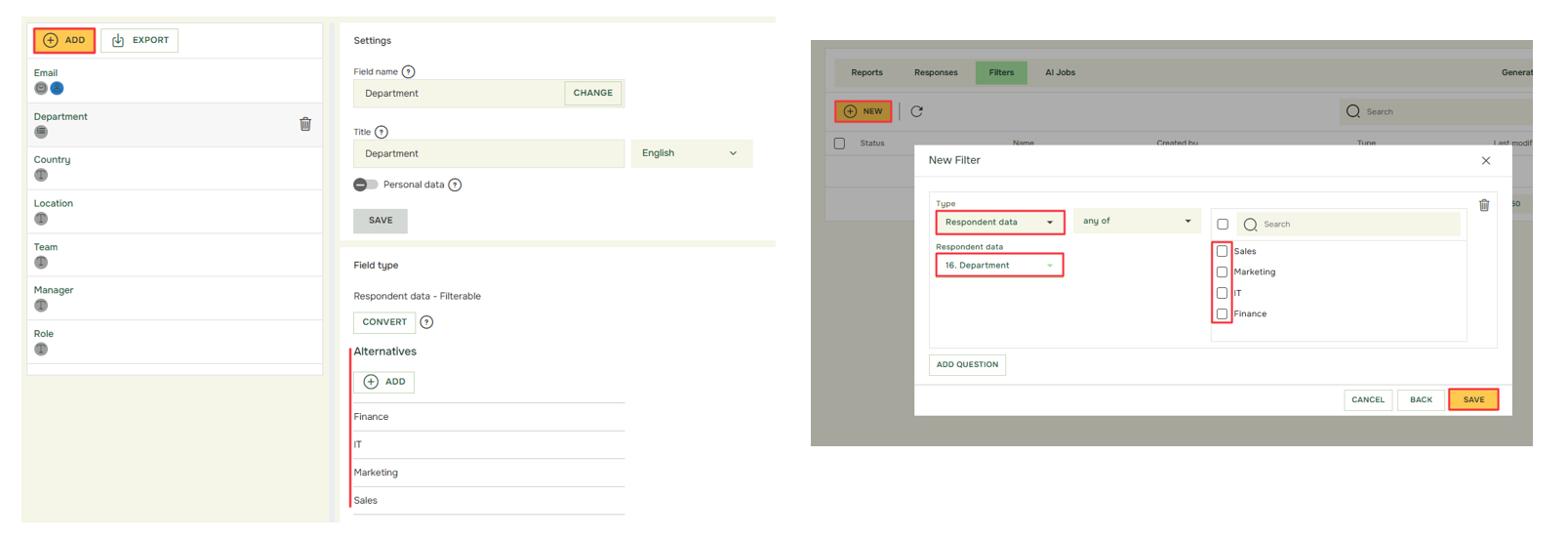
Recommended workflow:
- Prepare respondent data before distribution
- Decide which fields you need for reporting, such as department, country, location, team, manager or role.
- Import or validate respondent data
- Make sure group names are consistent. For example, avoid using both “Sales,” “sales” and “Sales Department” if they should be one group.
- Create value filters in Results
- Use value filters to define the group you want to report on.
- Create a master report template
- create a master report template containing one or two data sets per question depending on your desired reporting outcome
- one data set per question: the batch copy will apply the chosen filter and the reports will show the results for this filter
- two data sets per question: the batch copy will apply the chosen filter to the first data set and therefore the report will show a comparison between the chosen filter and the overall results
- Batch copy the master report template
- Select the corresponding filters and click on batch copy
- Apply anonymity and thresholds
- If the Quest uses Hidden Identity or Advanced Hidden Identity, check that subgroup reports do not show results below the response-count threshold.
- Test before sharing
- Open the report and check that the correct filters are applied and that no unintended data is visible.
- Share the report
- Share the LiveReport or report export with the relevant viewer.
Related articles: