How to create a branded Quest theme
A branded Quest theme helps you align your Quest with your company’s visual identity by automatically applying your brand colors and logo. Custom themes can be created in Design Themes and then applied to one or more Quests.
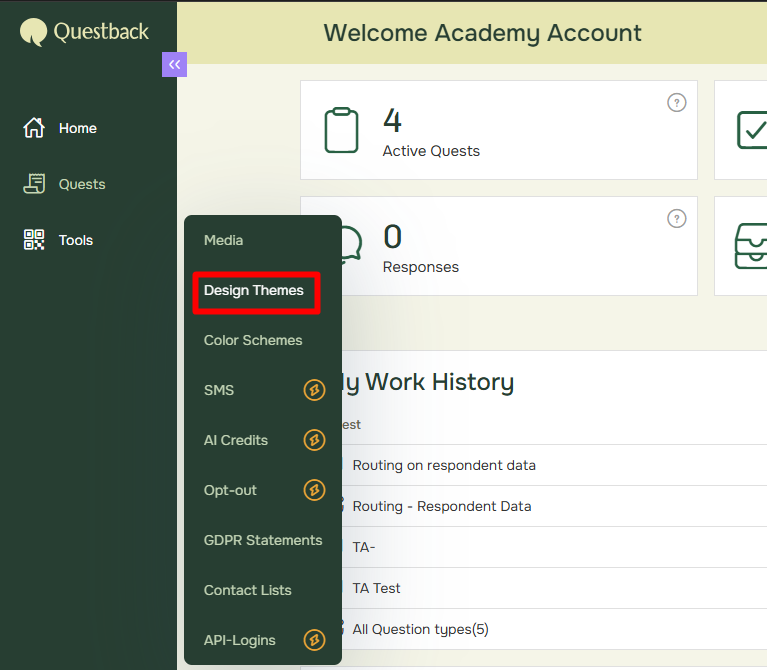
- To generate a theme with your company brand open Tools in the left-hand menu, select Design Themes
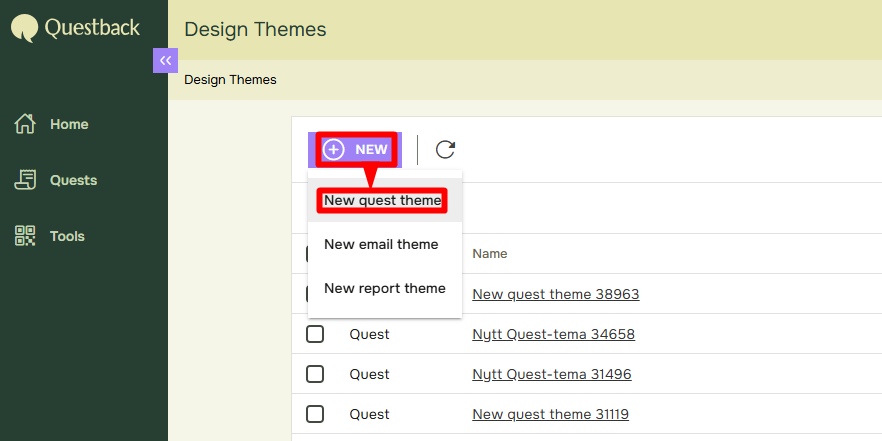
- Click New and select New Quest theme, remember to give your newly created theme a fitting name before proceeding:
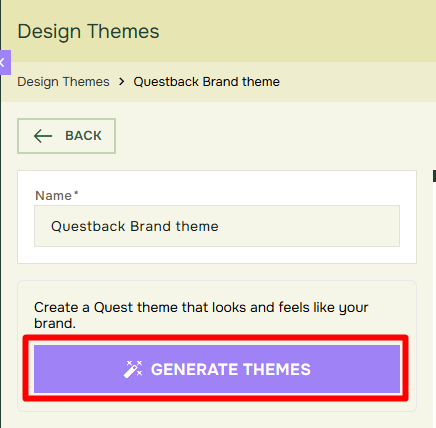
- To open the Theme generator, click the Generate Themes button:
- Enter your company’s domain in the input field to generate a theme with the correct company colors and logo:
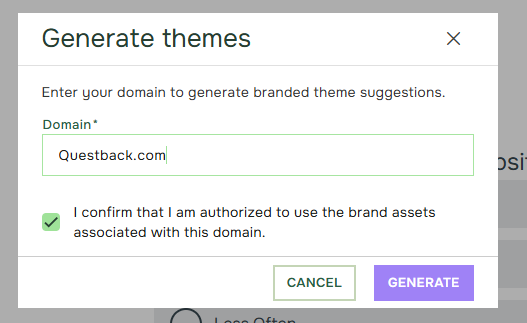
Before we can generate theme suggestions, we need you to confirm that you are authorized to use the brand associated with your domain.
- After entering the domain and confirmation click Generate, the Questback system will then generate one or several Theme suggestions based on your company brand. Review the suggestions and compare the available styles. Depending on the brand assets that are found, the suggestions may vary slightly in color balance and overall appearance. When you find a suggestion you want to use, select it and click Apply Theme.
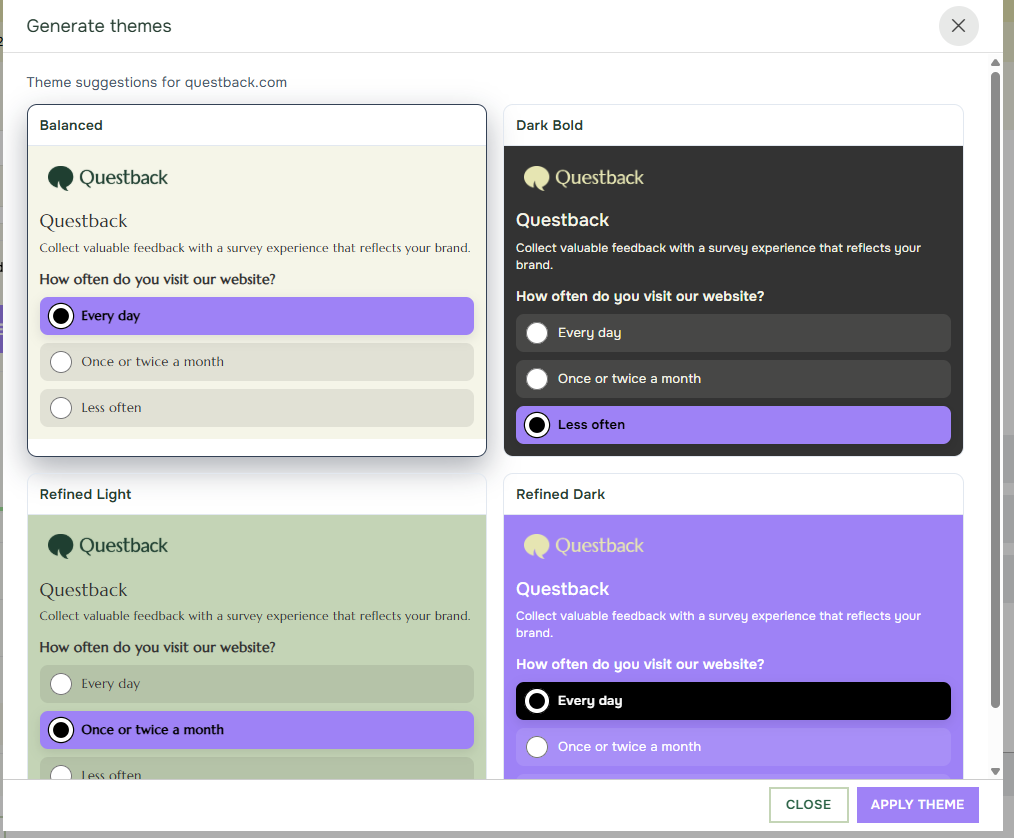
- After applying a suggestion, you can continue adjusting the theme if needed. For example, you may want to review colors, logo placement, add fonts, or other design elements before using the theme in a live Quest. This gives you a faster starting point while still allowing you to fine-tune the result!
- Once your branded theme has been created, you can apply it to your Quest:
- Open the Quest where you want to use the theme.
- Go to Settings.
- Select Theme.
- Choose your branded theme from the dropdown.